Filter
Track titles often contain extra text that clutters stream overlays and chat announcements: DJ Pool tags, YouTube-style suffixes, remix labels, video quality flags, and more. What's Now Playing can automatically strip this extra text from track titles before sending it anywhere.
Note: Filters apply to the track title only. Artist, album, and other metadata fields are not affected.
Why You Might Need Filters
Here are common examples of title clutter that filters can remove:
- DJ Pool tags:
Song Title - HD,Song Title (Clean),Song Title [Explicit] - Video suffixes:
Song Title (Official Music Video),Song Title [Lyric Video] - Version labels:
Song Title (Radio Edit),Song Title - Extended Mix - Remaster notes:
Song Title (Remastered),Song Title - 2024 Remaster - BPM/key annotations added by some tools:
Song Title (128 BPM),Song Title [Am]
Without filtering, these tags appear in your overlays, chat announcements, Guess Game, and set lists exactly as stored in the file.
Filter Types
What's Now Playing provides two filtering approaches:
Simple Filters
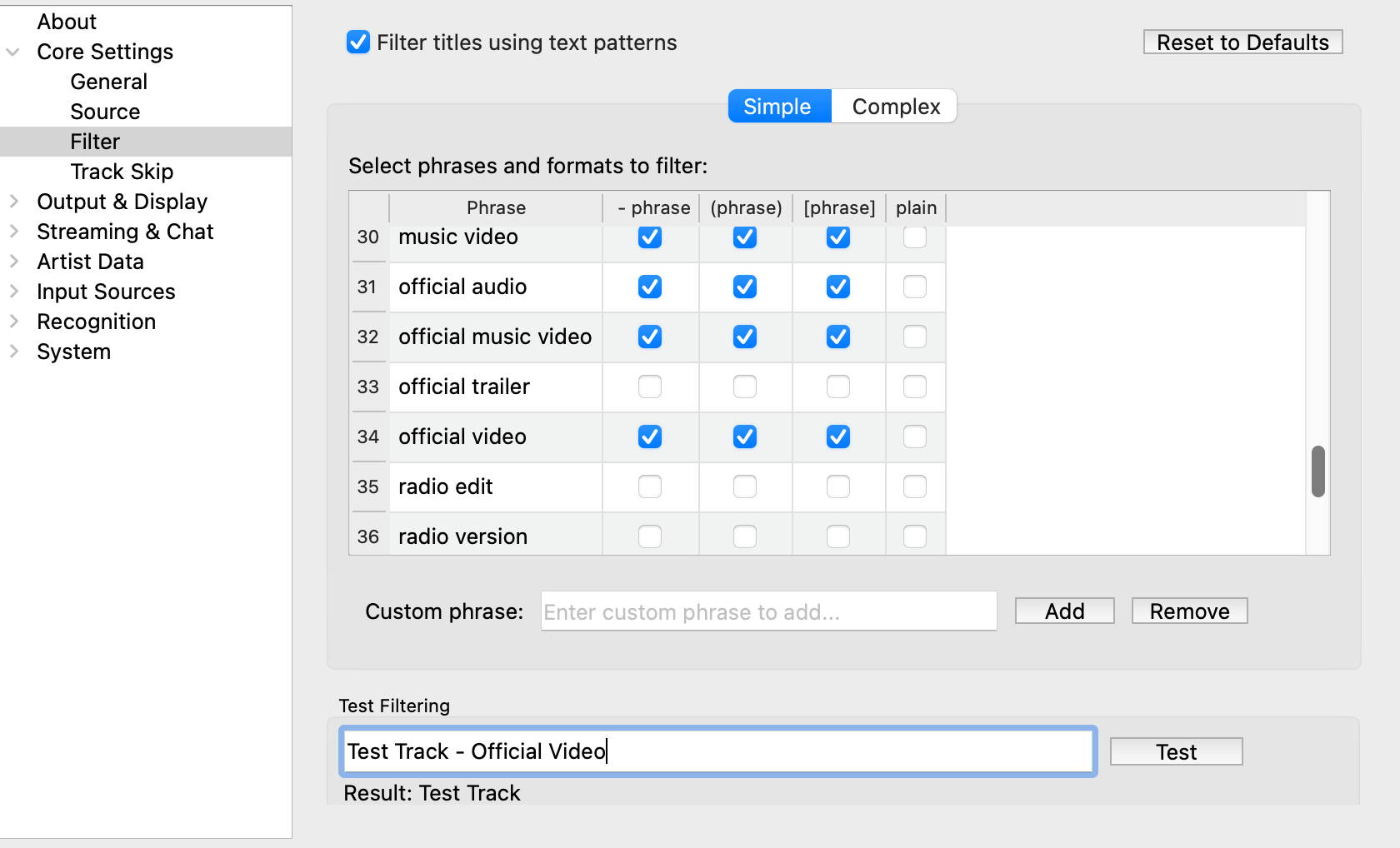
The Simple tab provides an easy-to-use interface for filtering common unwanted phrases from track titles. These filters work by matching specific phrases in different formats (all case-insensitive):
- - phrase: Matches
"- phrase"at the end of titles (with a leading space) - (phrase): Matches
"(phrase)"anywhere in titles (with a leading space) - [phrase]: Matches
"[phrase]"anywhere in titles (with a leading space) - plain: Matches
phraseanywhere in titles (use with care; plain matching strips the phrase wherever it appears in the title)
Default Phrases
By default, these phrases are enabled for dash/paren/bracket filtering:
- Video quality indicators: 1080p, 480p, 4k, 720p, hd, high quality, hq
- Content descriptors: ce, cs, clean, clean version, dirty, explicit, explicit version
- Video types: lyric video, lyrics video, music video, official audio, official music video, official trailer, official video
- Audio processing: remaster, remastered
Additional Phrases (Off by Default)
These phrases are available but not enabled by default. Turn them on if they appear in your library:
- Version types: acoustic, acoustic version, club mix, demo, demo version, extended mix, extended version, instrumental, live, live version, radio edit, radio version, remix, studio version, unreleased
- Release types: anniversary edition, bonus track, deluxe edition, special edition
Managing Custom Phrases
- Add custom phrases: Enter text in the input field and click "Add"
- Remove custom phrases: Select a custom phrase row and click "Remove"
- Configure formats: Use checkboxes to enable/disable different matching formats for each phrase
Complex Filters
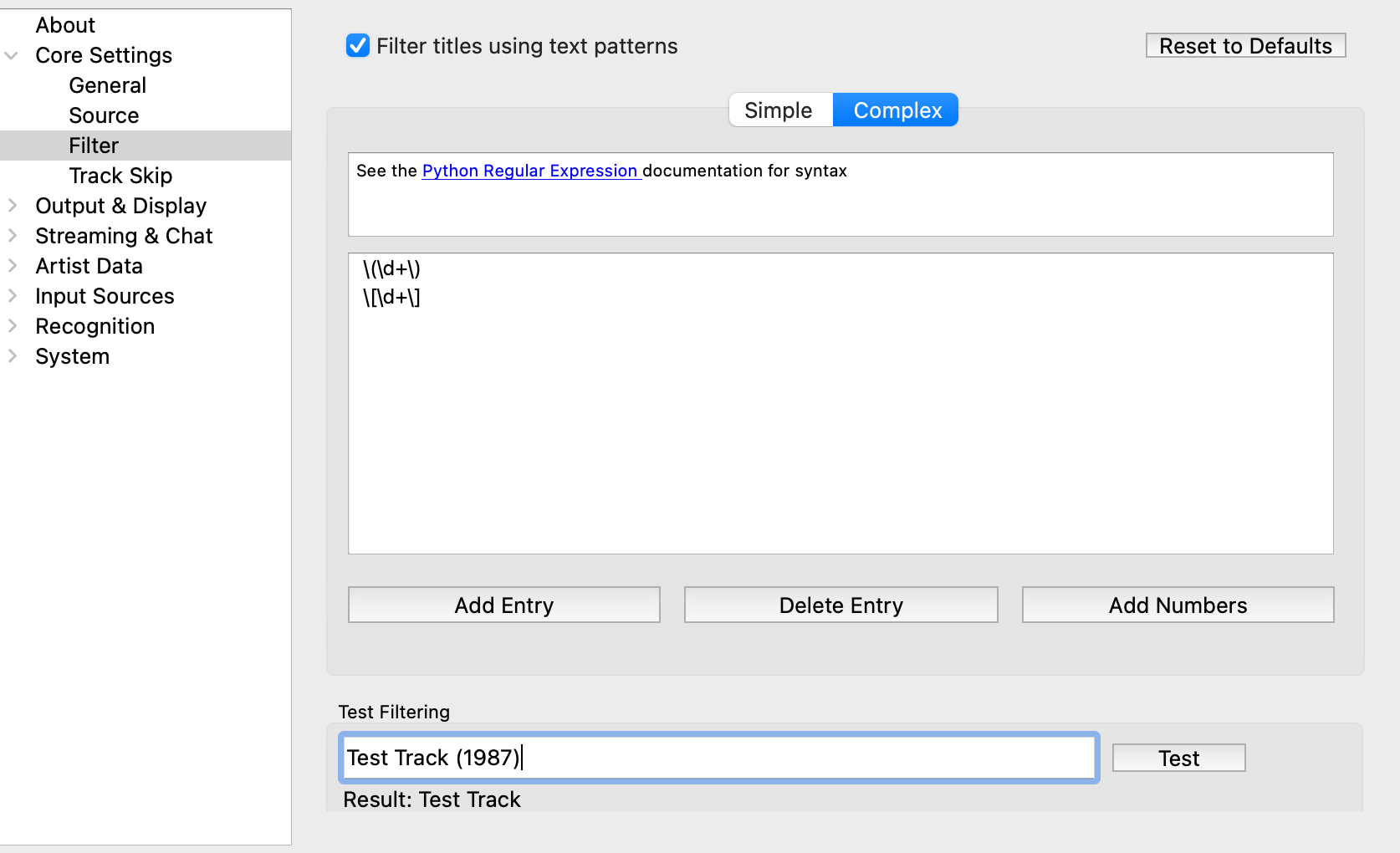
The Complex tab allows advanced users to create custom Python-style regular expressions for more sophisticated pattern matching. This is useful for:
- Stripping BPM or key annotations like
(128 BPM)or[Am] - Removing
feat./ft.artist credits from titles - Handling source-specific tagging conventions not covered by simple phrases
Adding Complex Rules
- Click "Add Entry" button
- Click on the new entry in the list
- Edit to be a regular expression
Managing Complex Rules
- Delete entry: Select entry and click "Delete Entry"
- Reorder rules: Drag entries to change application order
- Add number patterns: Click "Add Numbers" to add patterns that
match numbers in parentheses/brackets like
"(123)"and"[456]"
Reset to Defaults
Click the "Reset to Defaults" button (located at the top right) to:
- Reset simple filters to application defaults
- Remove all custom phrases
- Clear all complex regex patterns
This provides a clean starting point if filters become misconfigured.
Testing Your Filters
The test section at the bottom works with both simple and complex filters together, showing exactly what will happen to track titles in real usage:
- Enter test text in the input field
- Click "Test" button
- The result shows what the title becomes after applying all active filters (both simple and complex)
Paste a few real titles from your library to verify the output looks right before going live.
How Filters Are Applied
During playback, What's Now Playing applies filters in this order:
- Simple phrase filters (plain text matching first, then regex patterns)
- Complex regex patterns (in the order shown in the Complex tab)
Both types of filters work together to provide comprehensive title cleaning. The cleaned title is used everywhere: overlays, chat announcements, text output, the Guess Game, and set lists.