WNP EarShot
WNP EarShot is a companion app for macOS, iOS, and watchOS that uses Shazam-based audio identification to detect tracks playing on vinyl decks, standalone CDJs, Rekordbox, and analog mixers, then sends them to What's Now Playing over the local network.
NOTE: WNP EarShot must be installed and configured separately. See the WNP EarShot website for installation instructions.
Setup
Select EarShot as the Input Source
- Open Settings from the What's Now Playing icon
- Select Core Settings->Source from the left-hand column
- Select EarShot from the list of available input sources
- Click Save
This is the right choice when your entire setup is vinyl, CDJs, or an analog mixer, with WNP EarShot as the only source feeding track data.
Always-Accept Mode
If you mix vinyl or CDJs alongside DJ software (Serato, Traktor, etc.), use Always-Accept mode instead of switching sources:
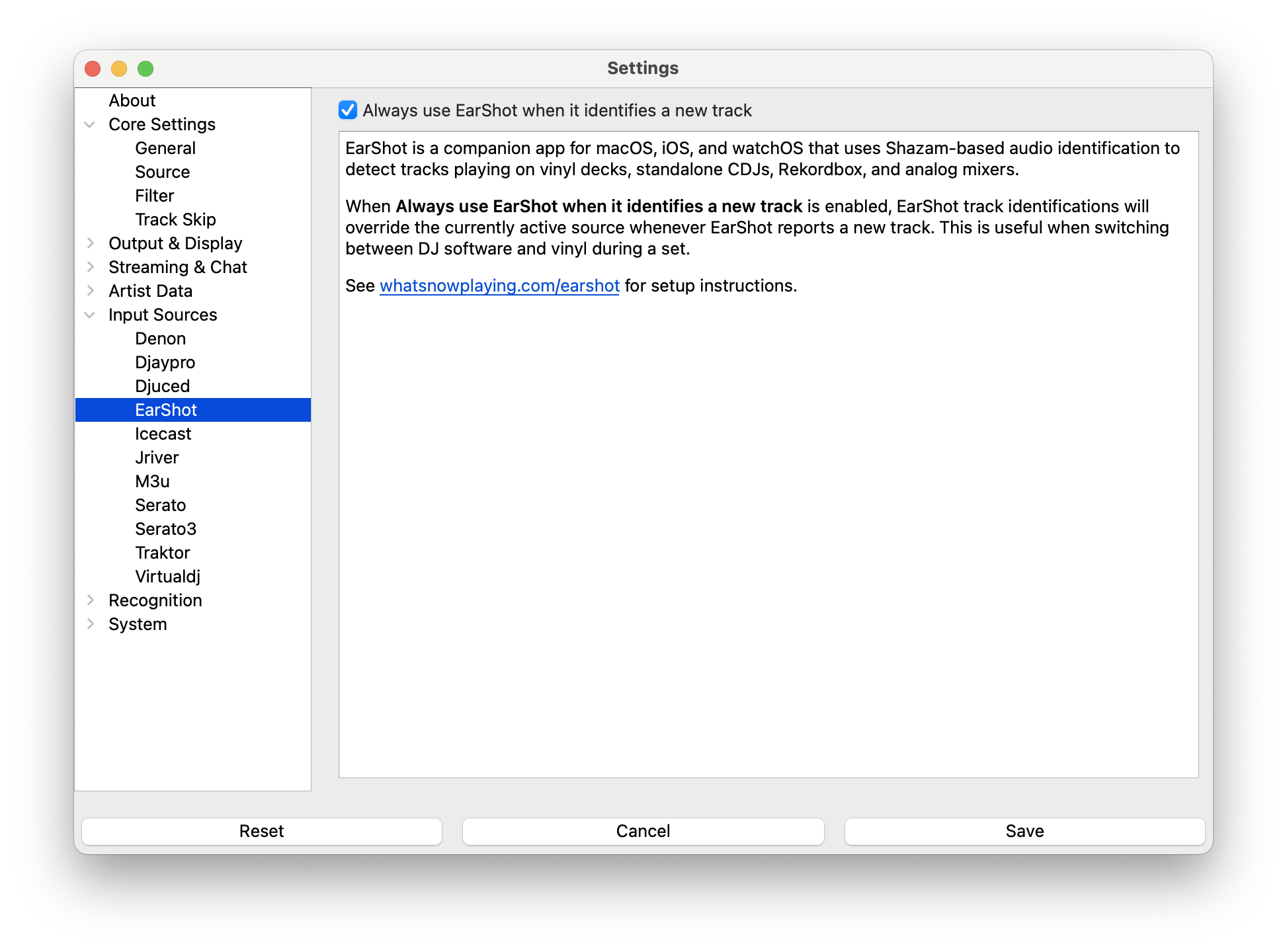
- Open Settings from the What's Now Playing icon
- Select Input Sources->EarShot from the left-hand column
- Confirm Always use EarShot when it identifies a new track is checked (enabled by default)
- Select your DJ software as the active source under Core Settings->Source
- Click Save
With this enabled, What's Now Playing runs a secondary EarShot monitor in the background. Whenever WNP EarShot identifies a new track that differs from what the DJ software is reporting, EarShot's identification takes over. Once your DJ software moves on to a new track, it resumes control automatically.
How It Works
WNP EarShot sends identified tracks to WNP's remote input endpoint over the local network. The EarShot source filters incoming remote tracks to only those originating from WNP EarShot; other remote sources are ignored.
In always-accept mode, WNP compares artist and title between EarShot and the active DJ software source. If WNP EarShot hears the same track the DJ software is already reporting (e.g. room audio bleed), it is treated as confirmation, not an override, so the display does not flicker.
Troubleshooting
If WNP EarShot identifications are not appearing:
- Confirm the WNP EarShot app is running and connected to the same local network as What's Now Playing
- Verify the WNP webserver is enabled (Output & Display->Web Server) and listening on the correct port
- Check the WNP EarShot app settings to confirm it is pointed at the correct WNP host and port
- Check the What's Now Playing logs for incoming remote input activity