Export for OBS
What's Now Playing can generate a ready-to-import OBS 28+ scene collection JSON file containing pre-configured browser sources for your overlays.
NOTE: This feature requires OBS Studio 28 or later and the built-in Web Server output to be enabled and running.
Opening the Export Dialog
Select Export for OBS... from the What's Now Playing system tray menu.
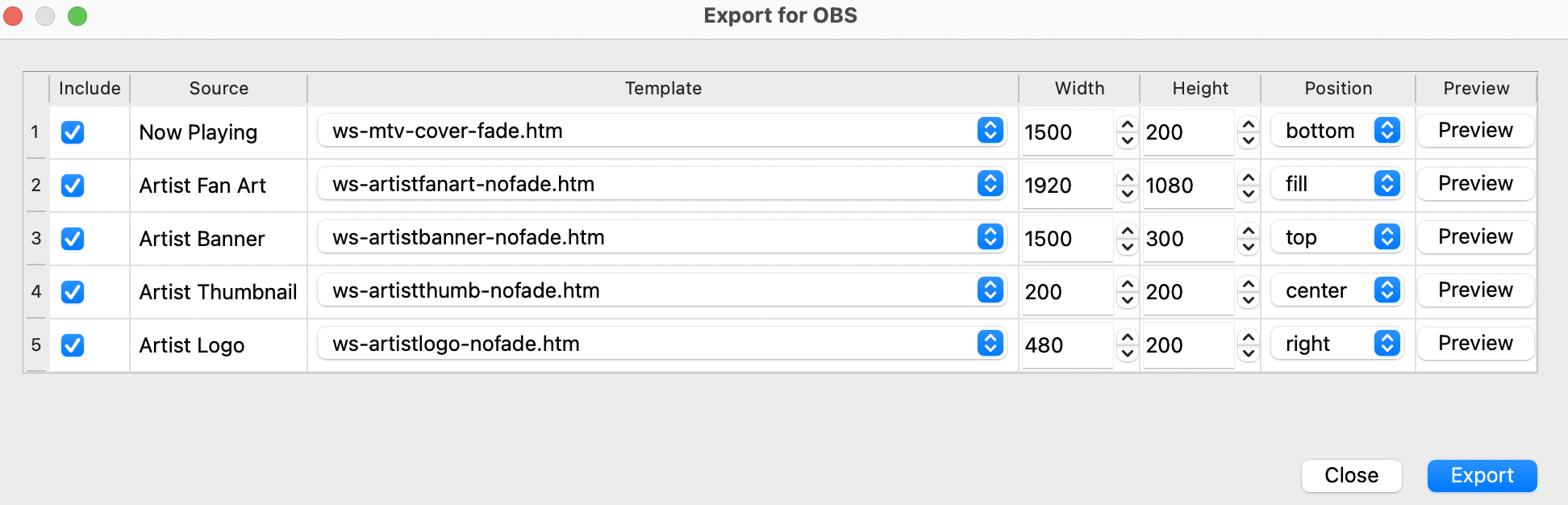
Configuring Sources
The dialog lists the available browser sources. For each source you can:
- Include — check or uncheck to include or exclude it from the export
- Source — the name that will appear in OBS Studio
- Template — the template file served at that browser source's URL
- Width / Height — the pixel dimensions of the browser source
- Position — where the source is placed on the canvas:
fill— scaled to fill the entire canvas (good for full-screen backgrounds)top— anchored to the top-left cornerbottom— anchored to the bottom of the canvasleft— vertically centred on the left edgeright— vertically centred on the right edgecenter— centred on the canvas
Previewing a Template
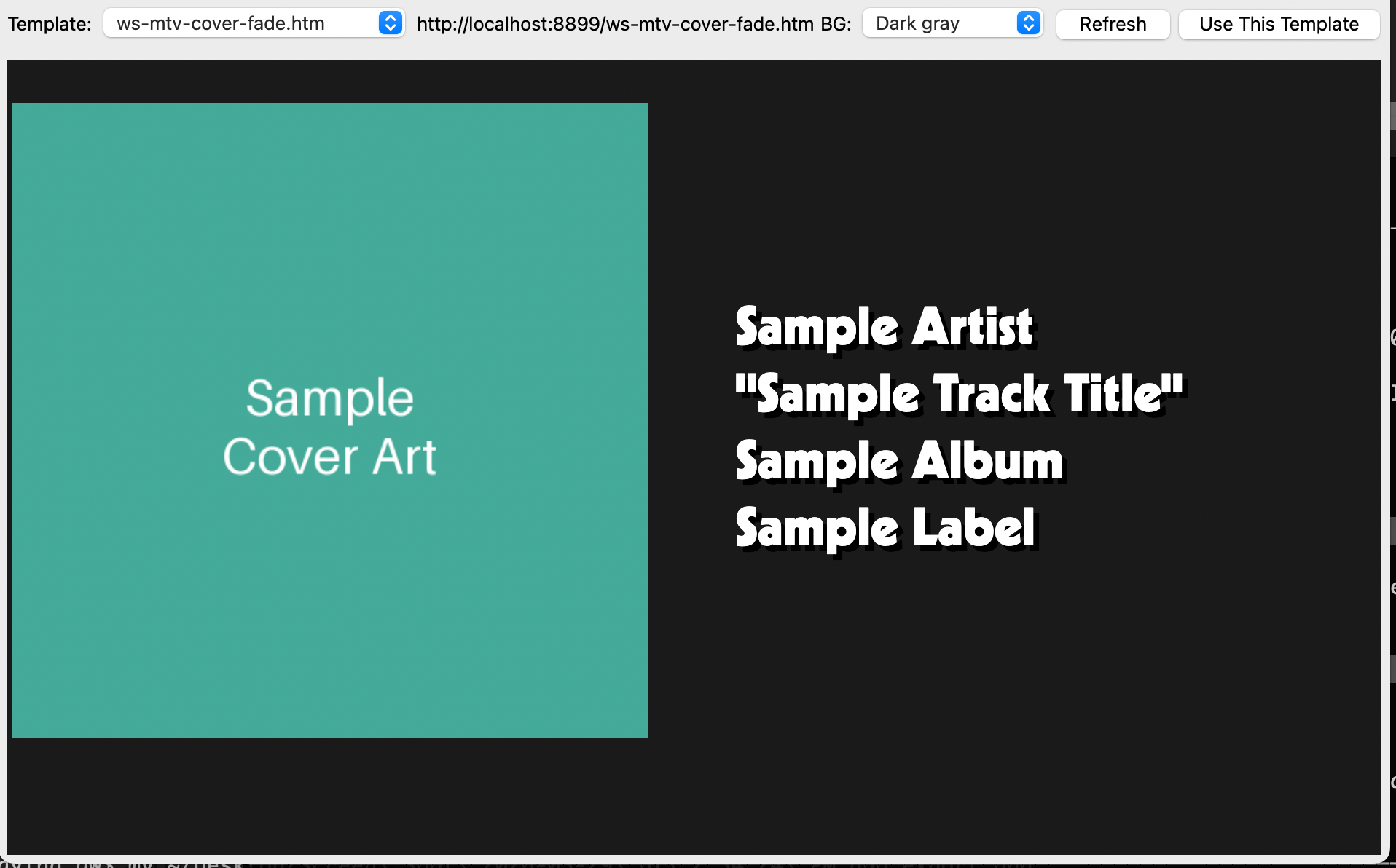
Click Preview on any row to open a live preview of that source's template in your browser. Use the template dropdown in the preview window to try different templates, then click Use This Template to apply your choice back to that row.
Exporting
Click Export to generate the scene collection file. What's Now Playing will save it to:
- macOS:
~/Library/Application Support/obs-studio/basic/scenes/ - Windows:
%APPDATA%\obs-studio\basic\scenes\ - Linux:
~/.config/obs-studio/basic/scenes/
If the OBS scenes directory is not found, the file is saved to
~/Documents/WhatsNowPlaying/obs_scenes/ instead.
The filename follows the pattern WNP-YYYY-MM-DD-HHMMSS.json.
Importing into OBS
NOTE: OBS Studio must not be running when you export. OBS reads its scene collection files on startup, so quit OBS before clicking Export, then relaunch it to pick up the new collection.
After exporting and relaunching OBS:
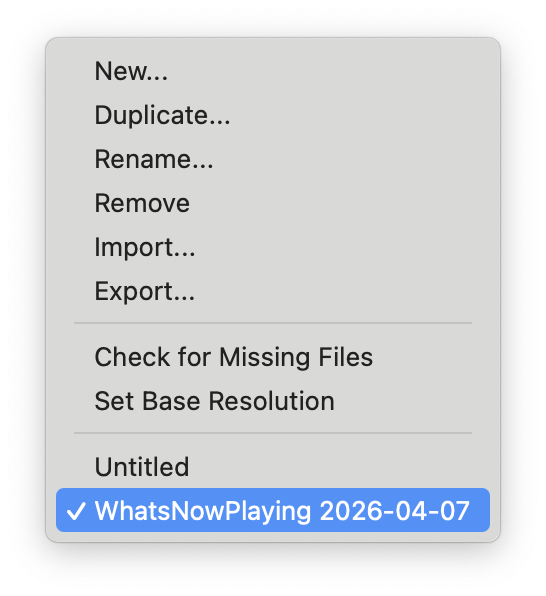
- Open the Scene Collection menu in the OBS menu bar
- The new WhatsNowPlaying collection will appear in the list. Click it to switch to it
The collection contains three scenes:
- WNP Sources — the browser sources you selected and configured in the export dialog, already sized and positioned
- WNP Guess Game — three WebGL-enhanced Guess Game sources: the animated game overlay, the session leaderboard, and the all-time leaderboard. Requires OBS Studio's built-in browser (CEF), which supports WebGL.
- WNP Guess Game Basic — the same three Guess Game sources using the standard HTML/CSS templates, for use if WebGL is unavailable or unsupported.
All three scenes are intended as source libraries. Copy the individual browser sources into your own scenes as needed.